Leads Listing Overview
Leads Listing Overview
The Leads page in the system is designed to help you efficiently manage and track
potential customers throughout the sales pipeline.
Here’s a detailed overview of the functionalities and features available
on this page.
Main Features
📌 Lead Stages Kanban Board
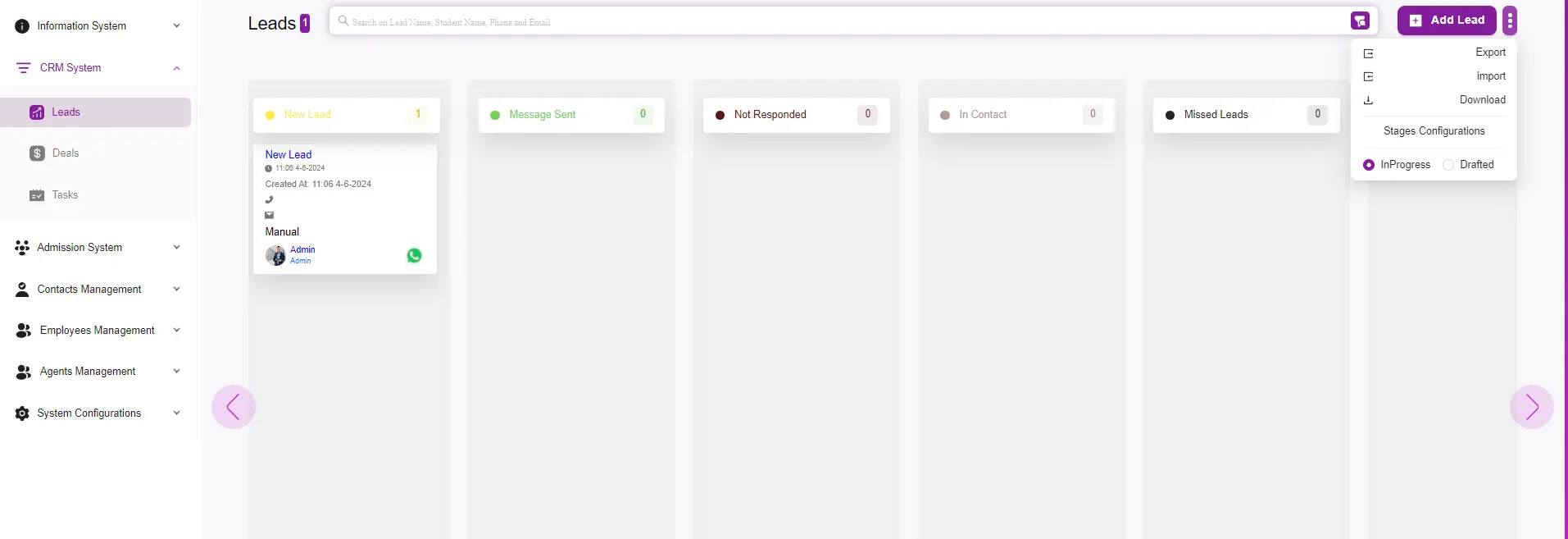
The Leads page is organized as a Kanban board, where leads are categorized
into different stages:
- New Lead
- Message Sent
- Not Responded
- In Contact
- Missed Leads
This visual representation allows you to track the progress of each lead
through the sales pipeline at a glance.
⚡ Quick Actions
On the top right corner, there are several quick action buttons:
- Add Lead → Click this button to manually add a new lead to the system.
- Export → Export the list of leads for reporting or backup purposes.
- Import → Import leads from an external source to quickly populate your pipeline.
- Download → Download the details of your leads in a specific format.
- Stages Configurations → Customize the stages of your sales pipeline
to fit your business process. - Toggle InProgress/Drafted → Switch between viewing leads that are
actively in progress or in a drafted state.
🗂️ Lead Information Card
Each lead is represented by a card containing key information:
- Name and Timestamp → Displays the lead’s name and creation time.
- Contact Methods → Icons for available contact methods (phone, email, WhatsApp).
- Source → Shows how the lead was generated (e.g., manually by an admin).
- Lead Owner → Indicates who is responsible for the lead within the system.
🔍 Search and Filter
The search bar at the top allows you to quickly find specific leads by entering
keywords such as:
- Lead name
- Student name
- Phone number
- Email address